The Energy feature on Bitcoin.me allows you to lock certain tokens (like KFI) to increase your account’s energy and earn weekly rewards.
When you add energy, your tokens are temporarily locked for a selected period. In return, you gain energy that helps power features on the platform and gives you access to rewards.
This guide will show you how to:
Add energy
Enable your rewards
Remove your energy and unlock your tokens
Part 1: How to Add Energy
Before you start:
Make sure your Klever Extension wallet is connected, and that you have:
The token you want to lock (for example KFI)
A small amount of KLV to pay network fees
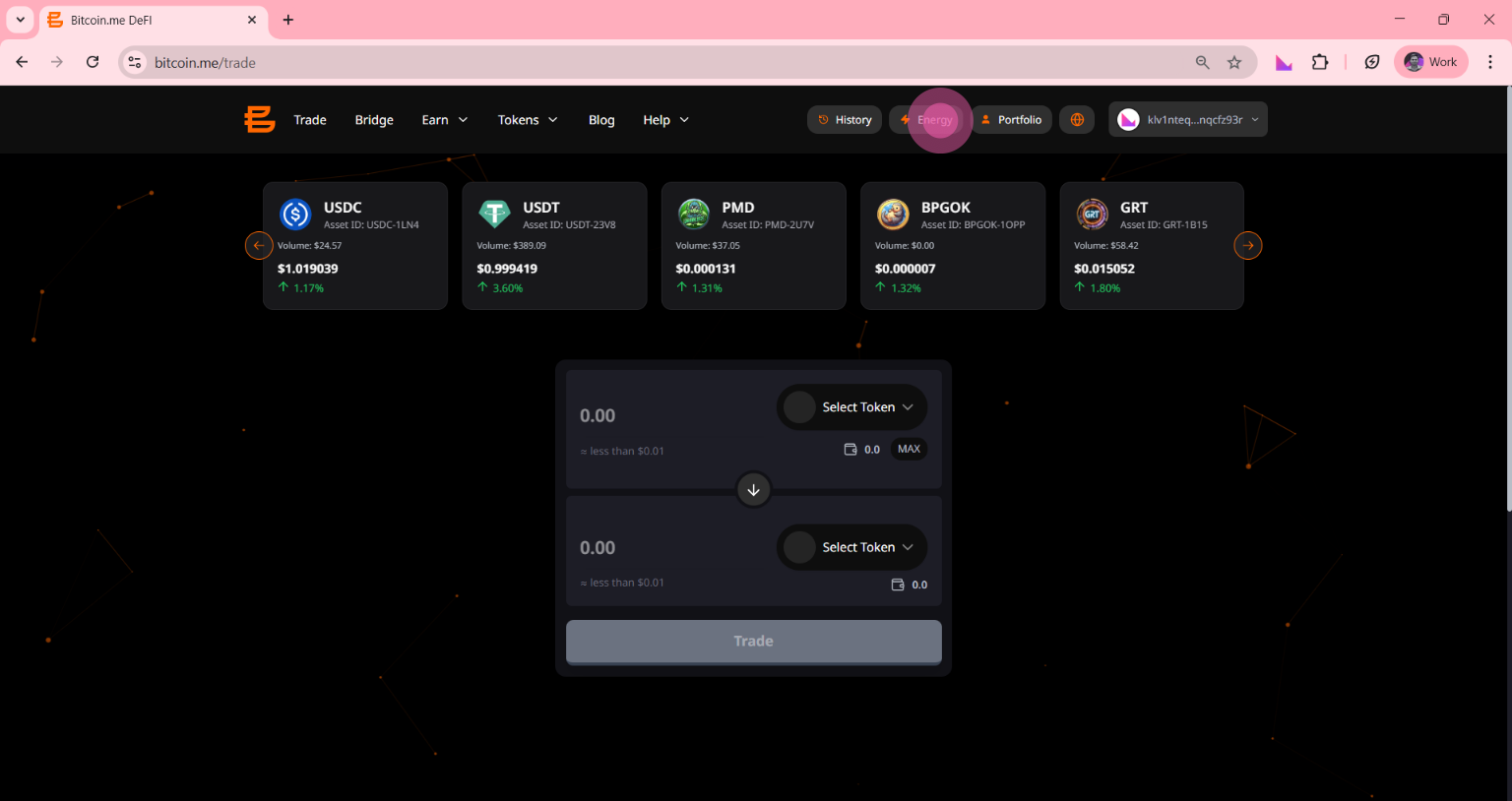
Step 1 — Go to the Energy page
On the top menu of Bitcoin.me, click Energy.
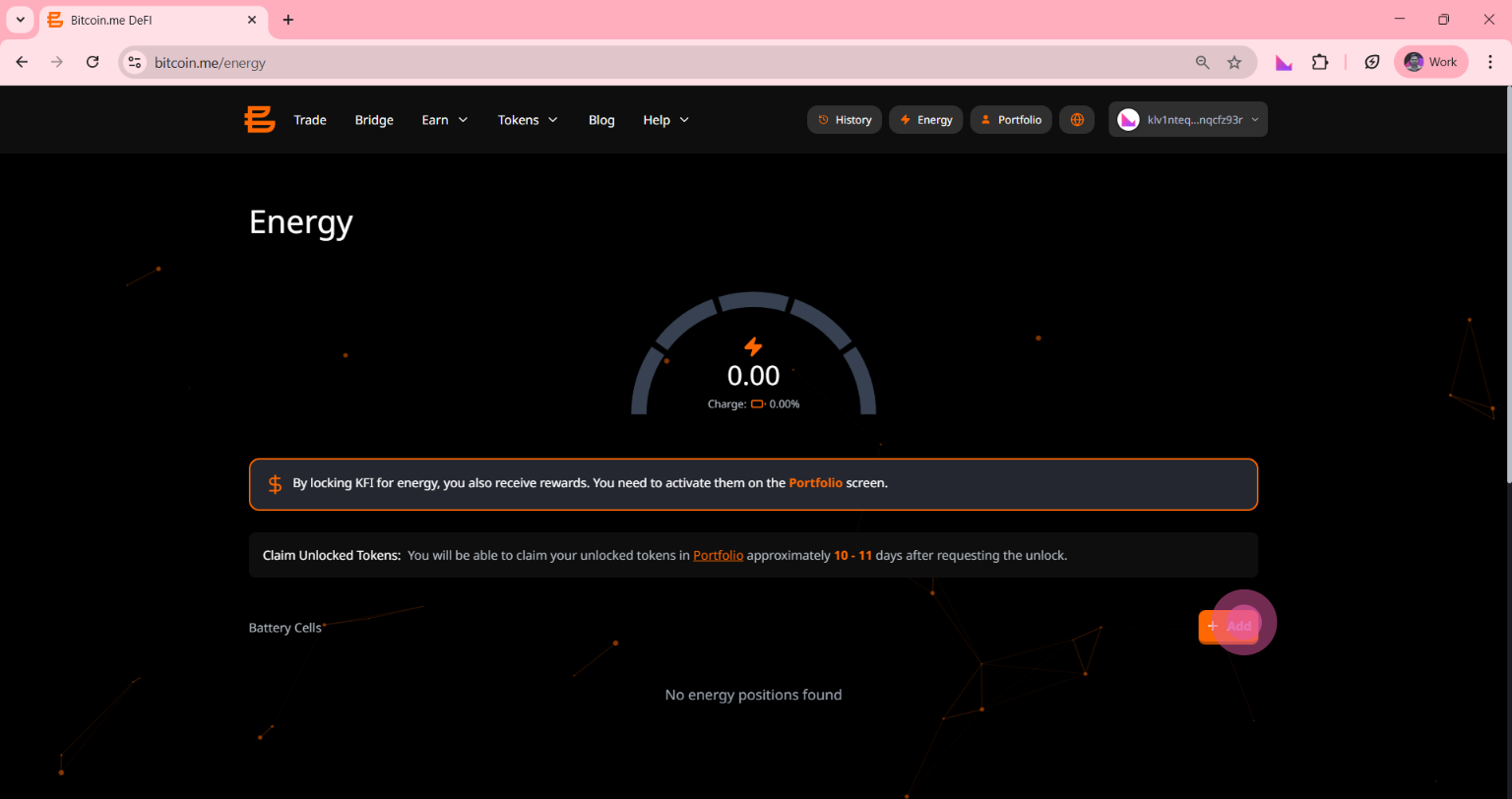
Step 2 — Create a new energy position
In the Battery Cells section, click the orange + Add button.
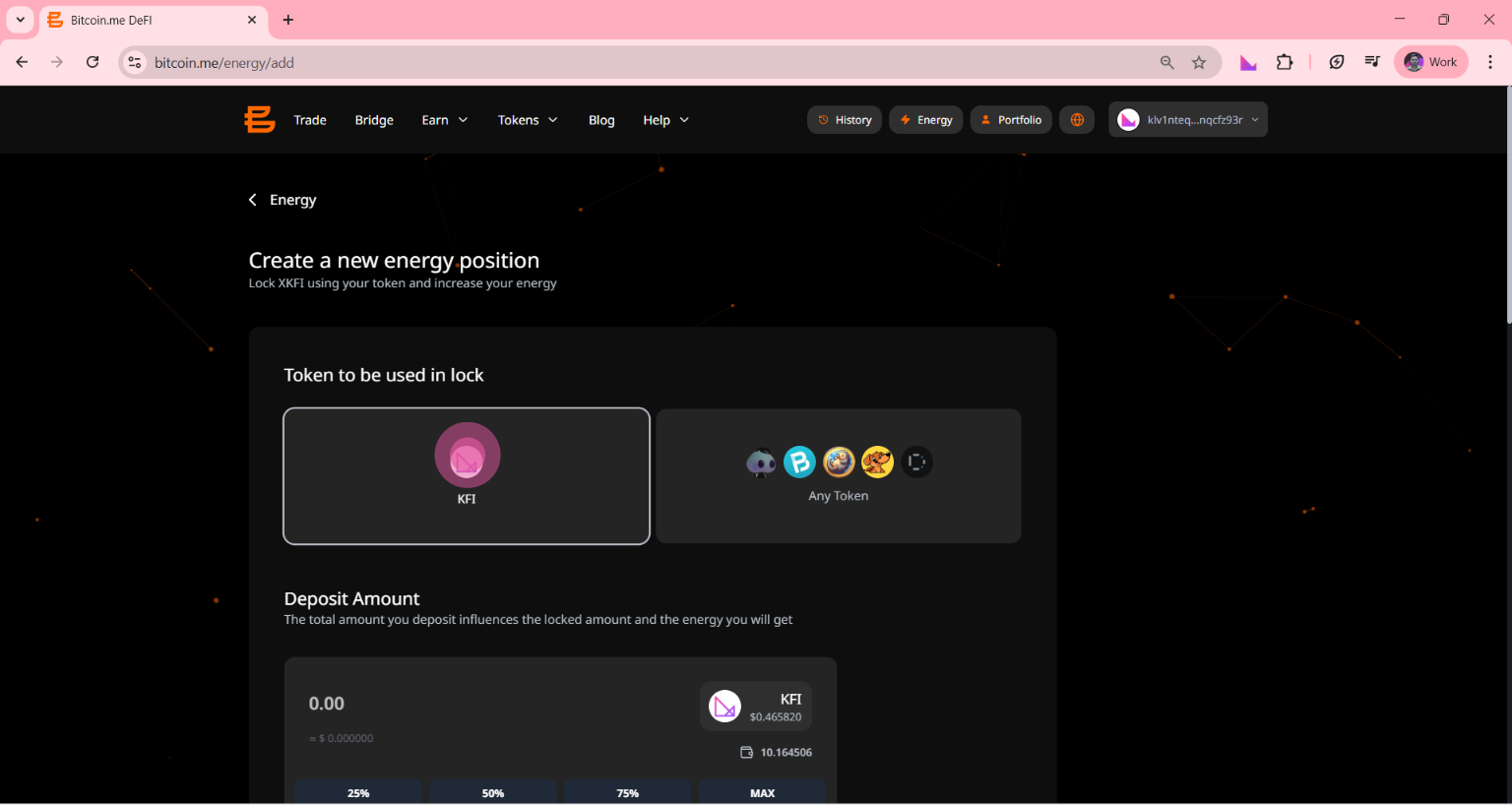
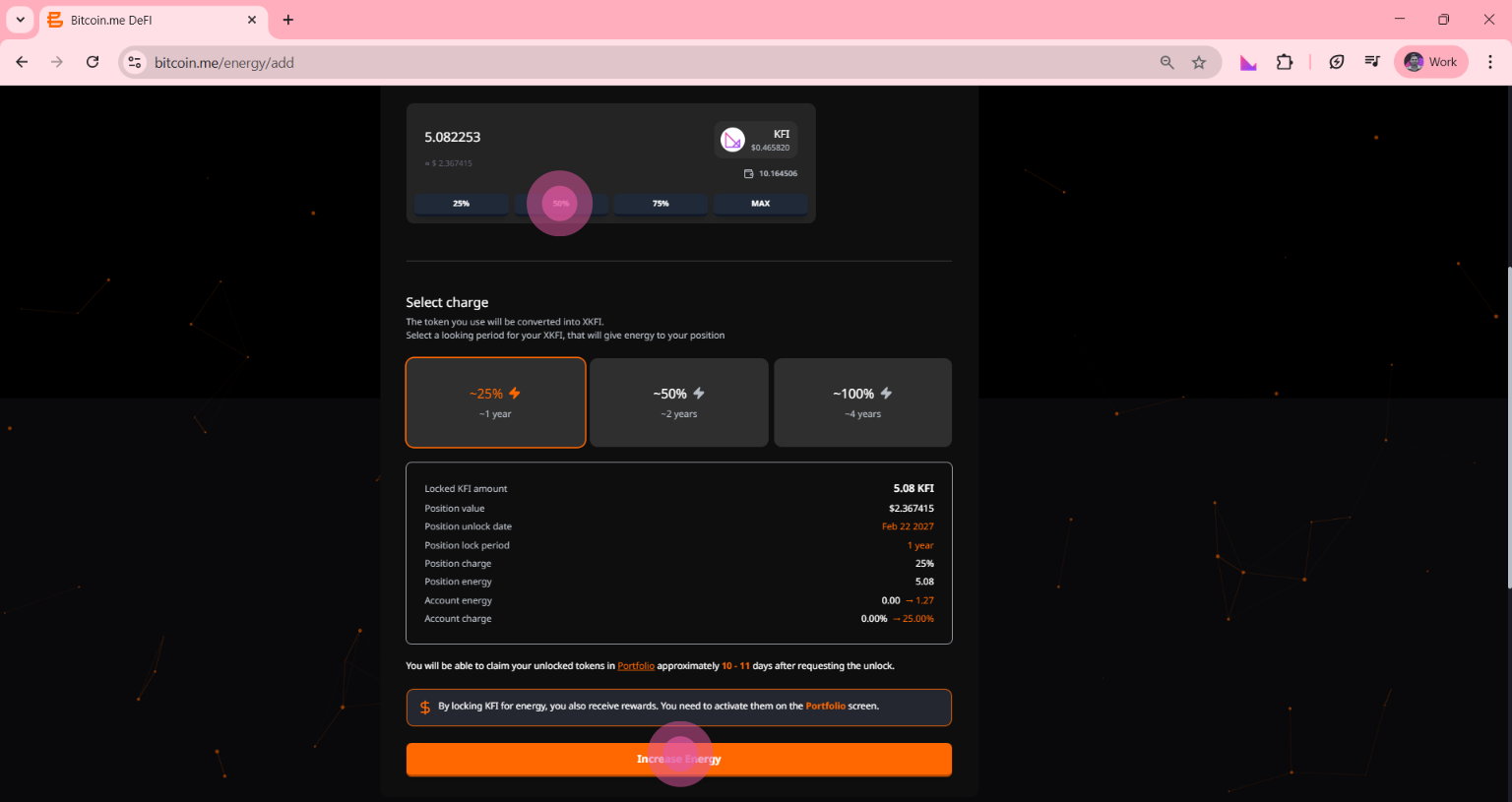
Step 3 — Choose the token and amount
On the Create a new energy position screen:
Select the token you want to lock (for example KFI)
Enter the amount you want to lock
You can type the amount or use the quick buttons:
25% • 50% • 75% • MAX
Step 4 — Choose how long to lock your tokens
Next, choose the lock period.
The longer you lock your tokens, the more energy you receive.
Example:
1 year → about 25% energy
2 years → about 50% energy
4 years → about 100% energy
Step 5 — Confirm
Check the details of your position:
Lock date
Energy amount
Account charge
Then click Increase Energy.
Step 6 — Approve the transaction
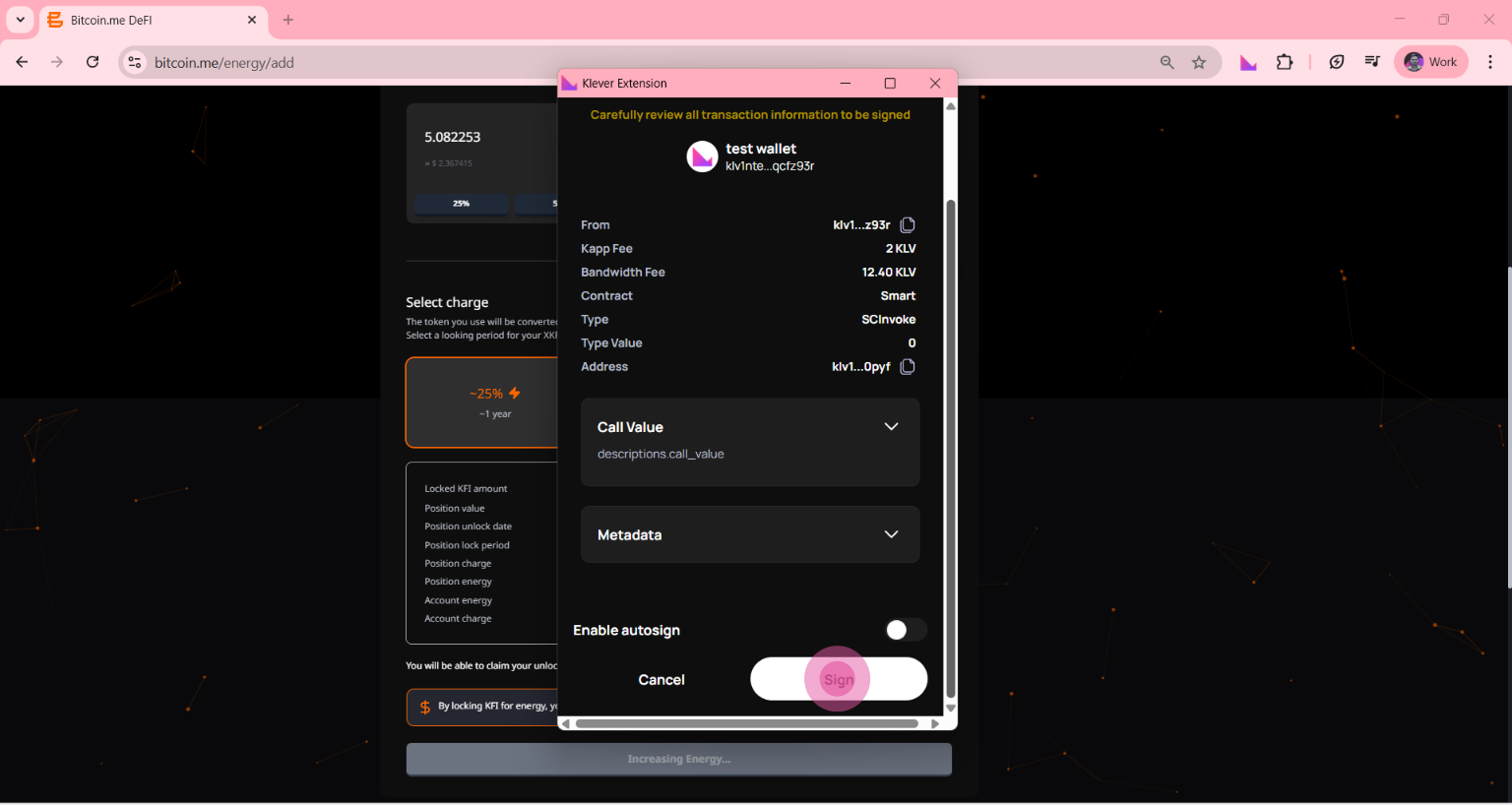
Your Klever Extension will open.
Review the transaction details and click Sign to confirm.
Once confirmed, your energy will be added to your account.
Part 2: How to Enable Energy Rewards
After adding energy, you need to activate your rewards.
Step 1 — Go to your Portfolio
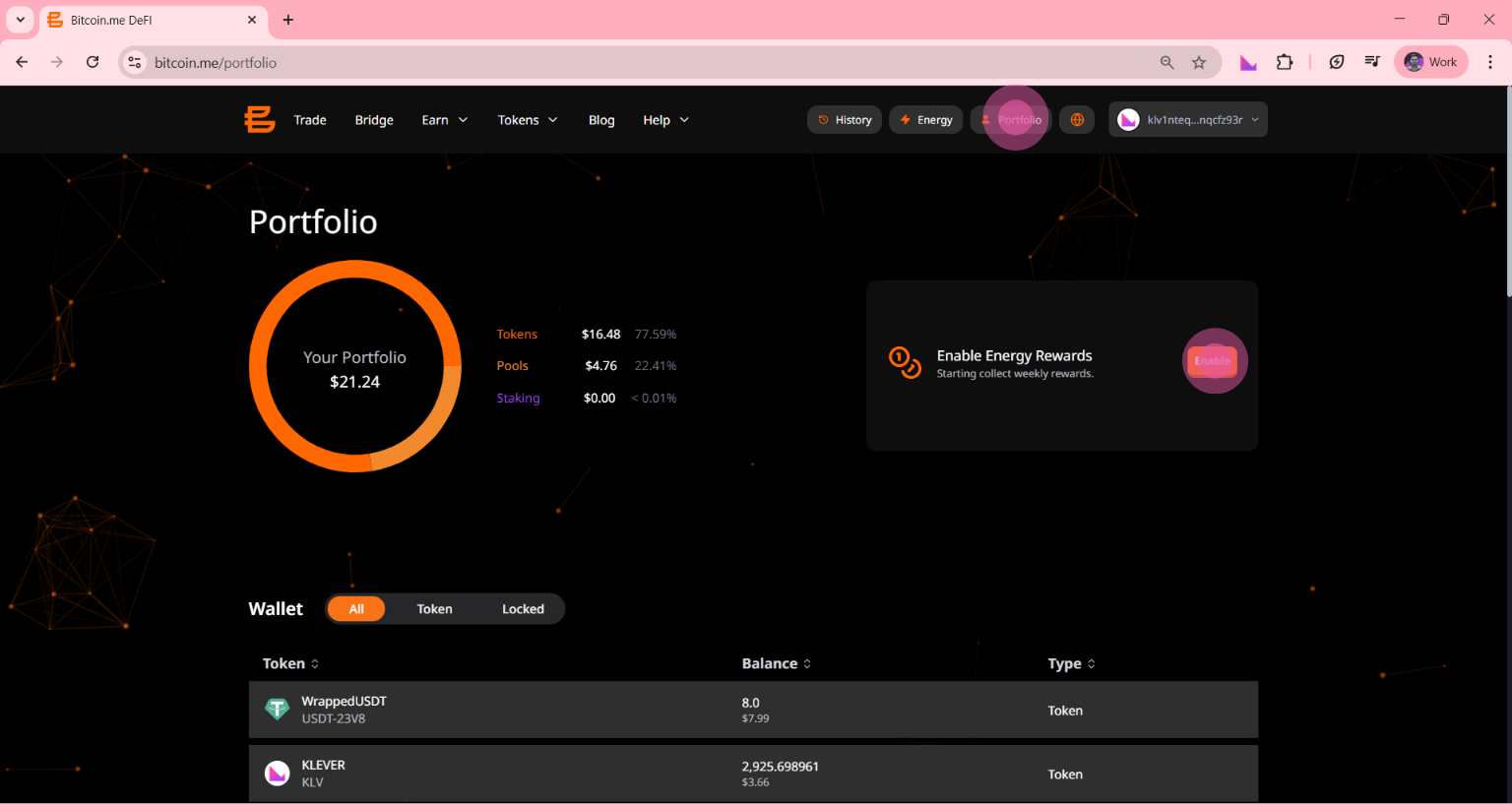
Click Portfolio in the top menu.
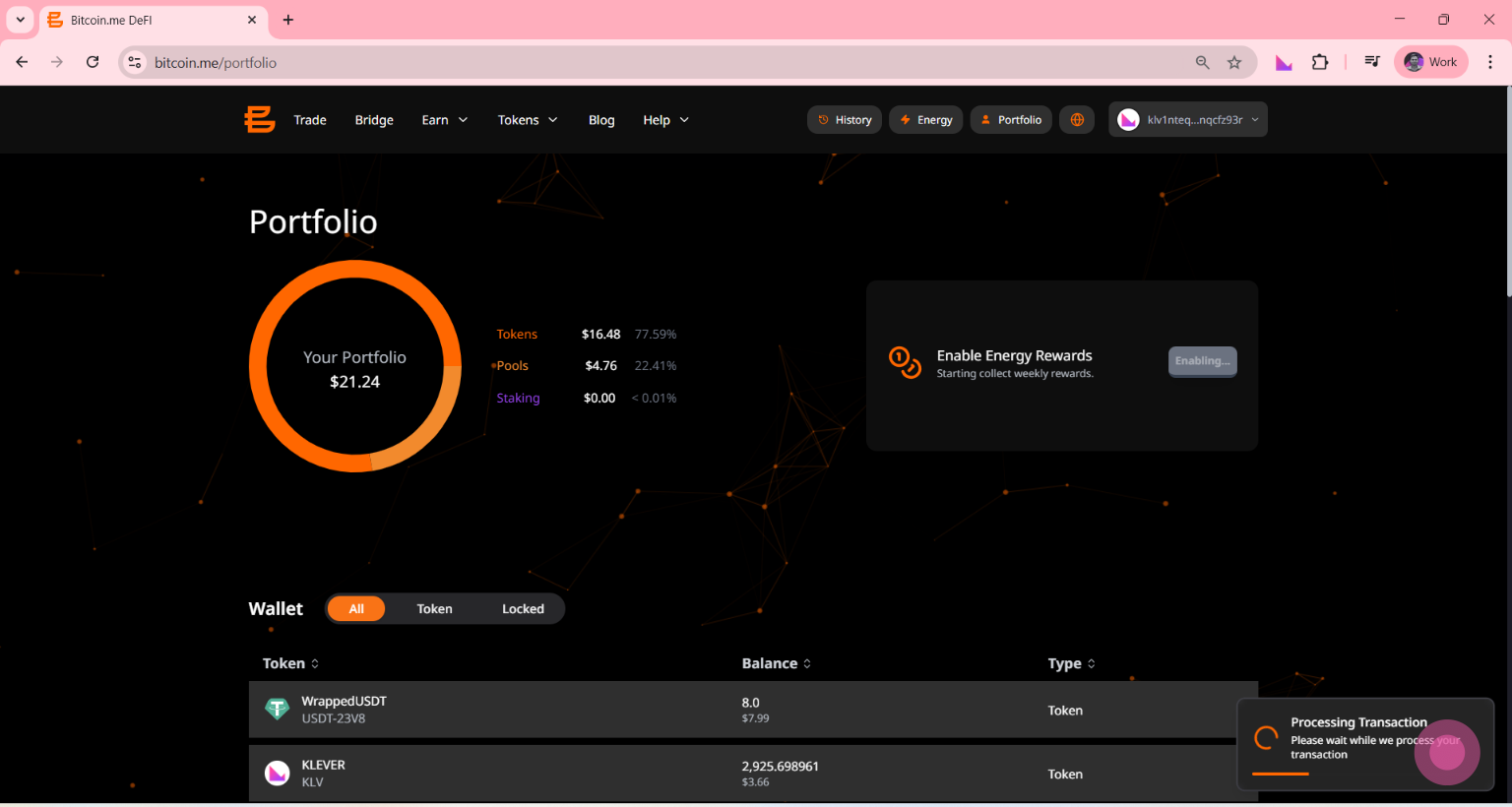
Step 2 — Enable rewards
On the right side of the screen, find the Enable Energy Rewards box.
Click Enable.
Step 3 — Confirm the transaction
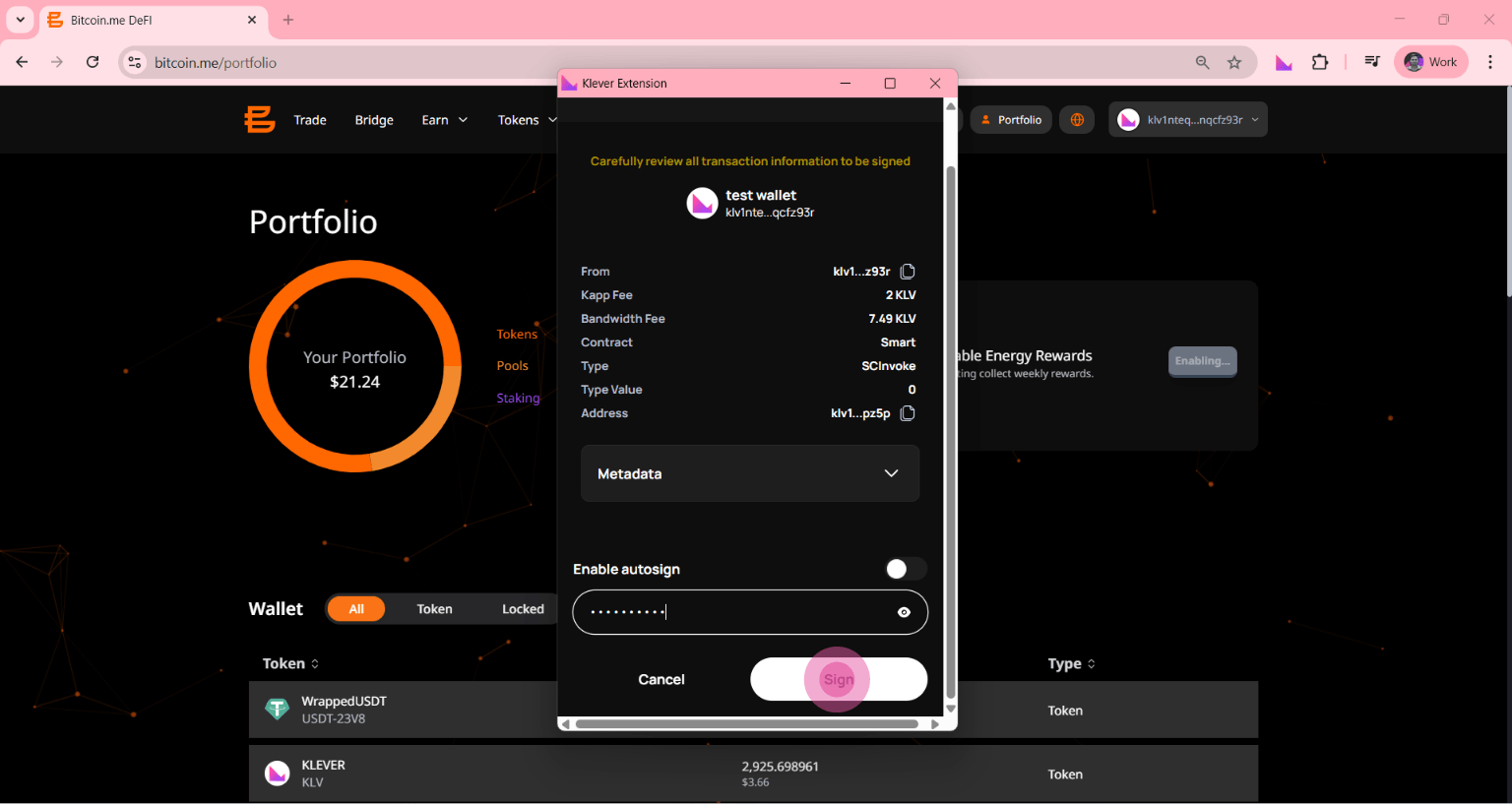
Your Klever Extension will appear again.
Review the details and click Sign.
Once the transaction is confirmed on the blockchain, your weekly rewards will start automatically.
Part 3: How to Remove Energy and Unlock Your Tokens
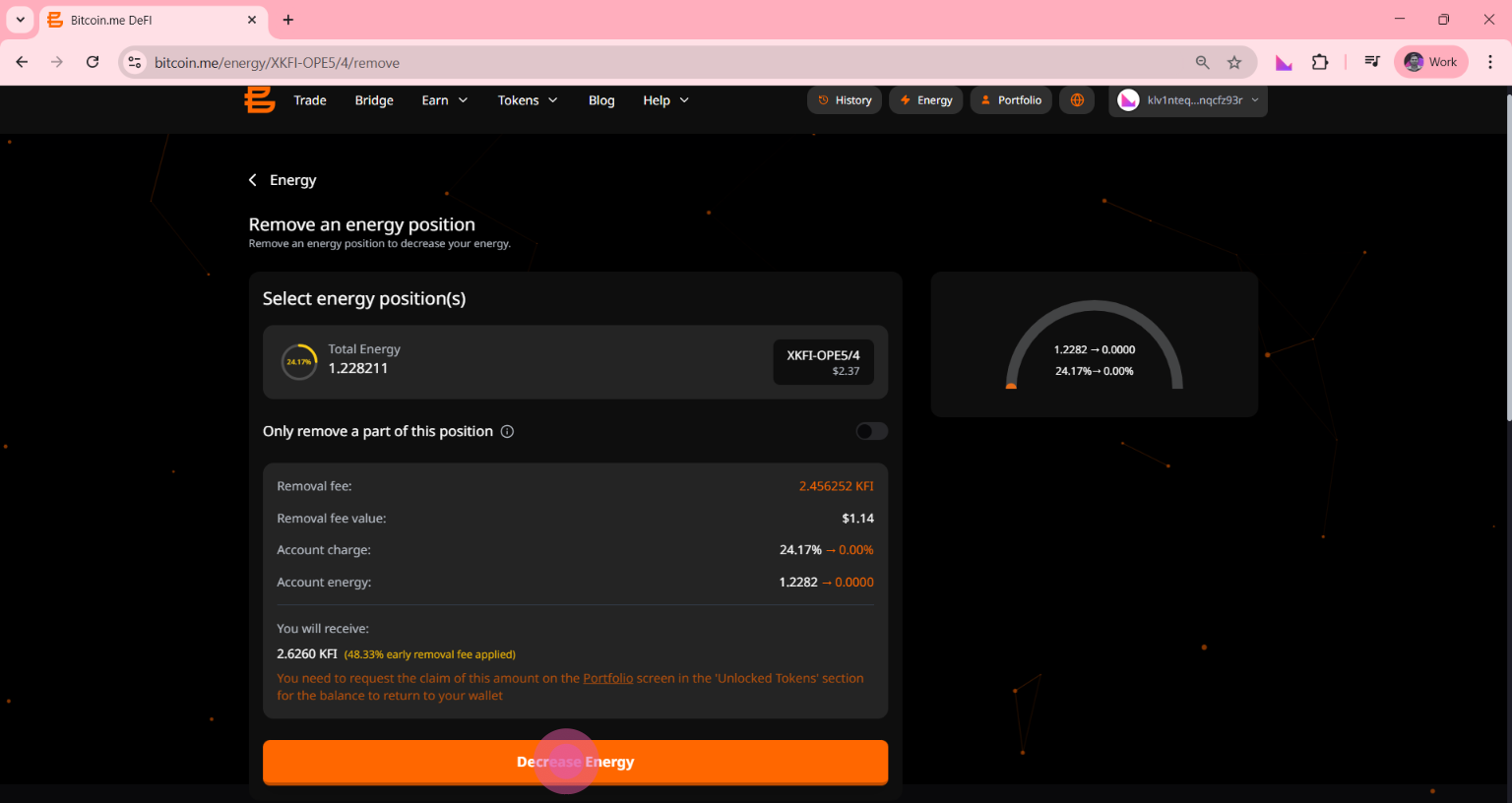
If you want to unlock your tokens, you can remove your Battery Cell.
⚠️ Important:
After requesting the removal, there is a waiting period of about 10–11 days before your tokens become available again.
Step 1 — Go back to the Energy page
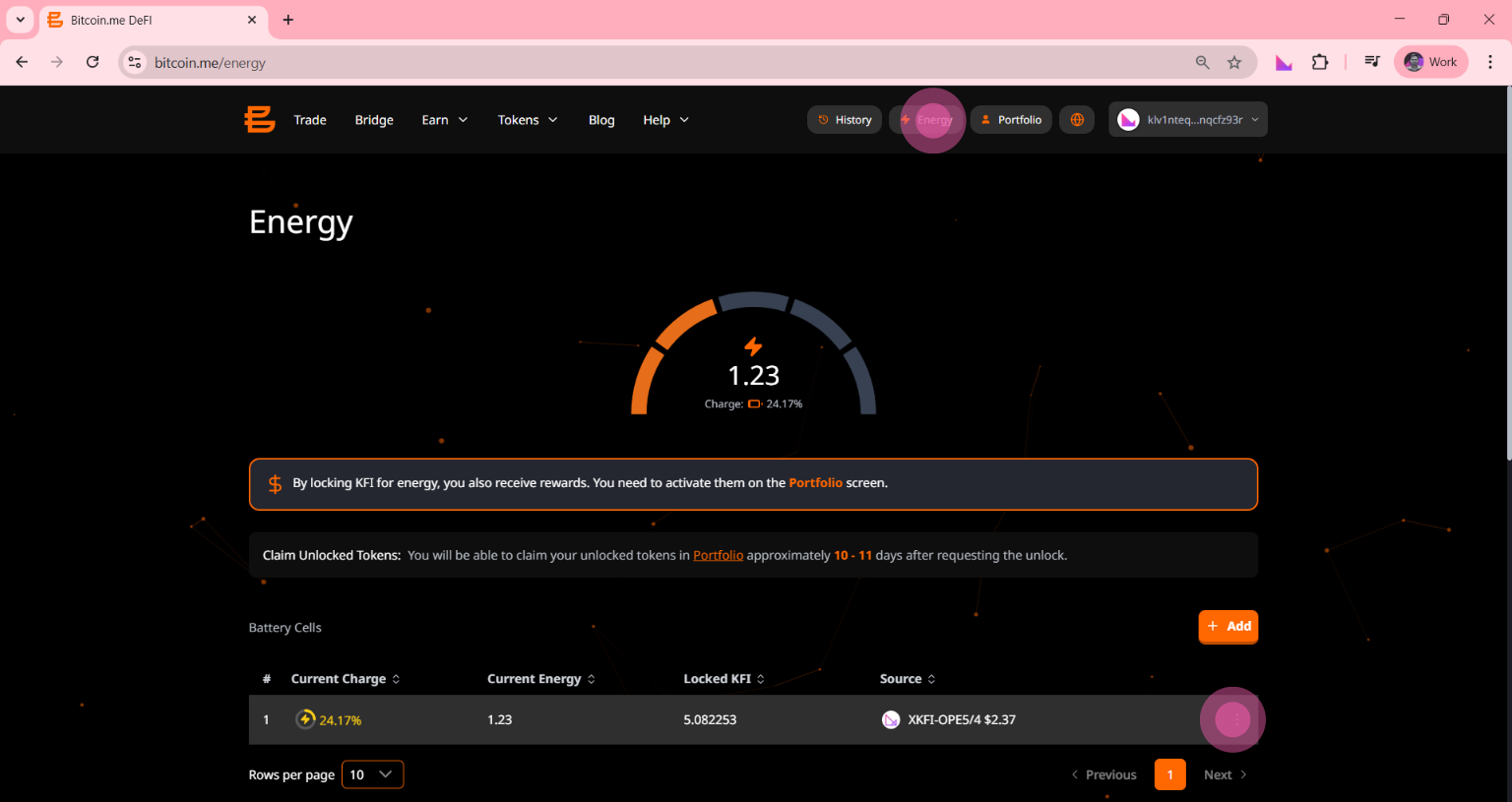
Click Energy in the top menu.
Step 2 — Find your Battery Cell
Scroll down to the Battery Cells section to see your active positions.
Step 3 — Open the options menu
Click the three-dot icon (⋮) next to the position you want to unlock.
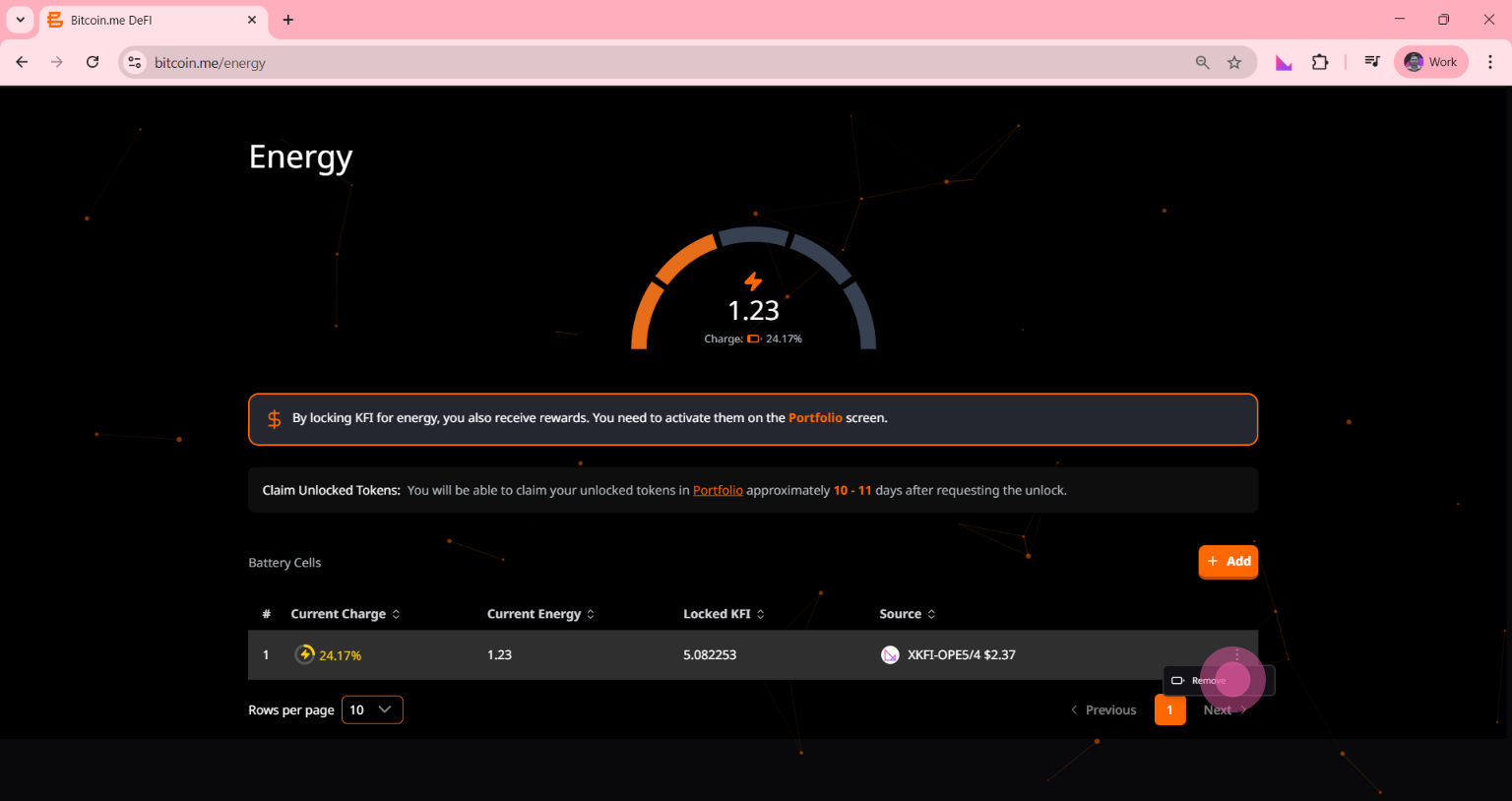
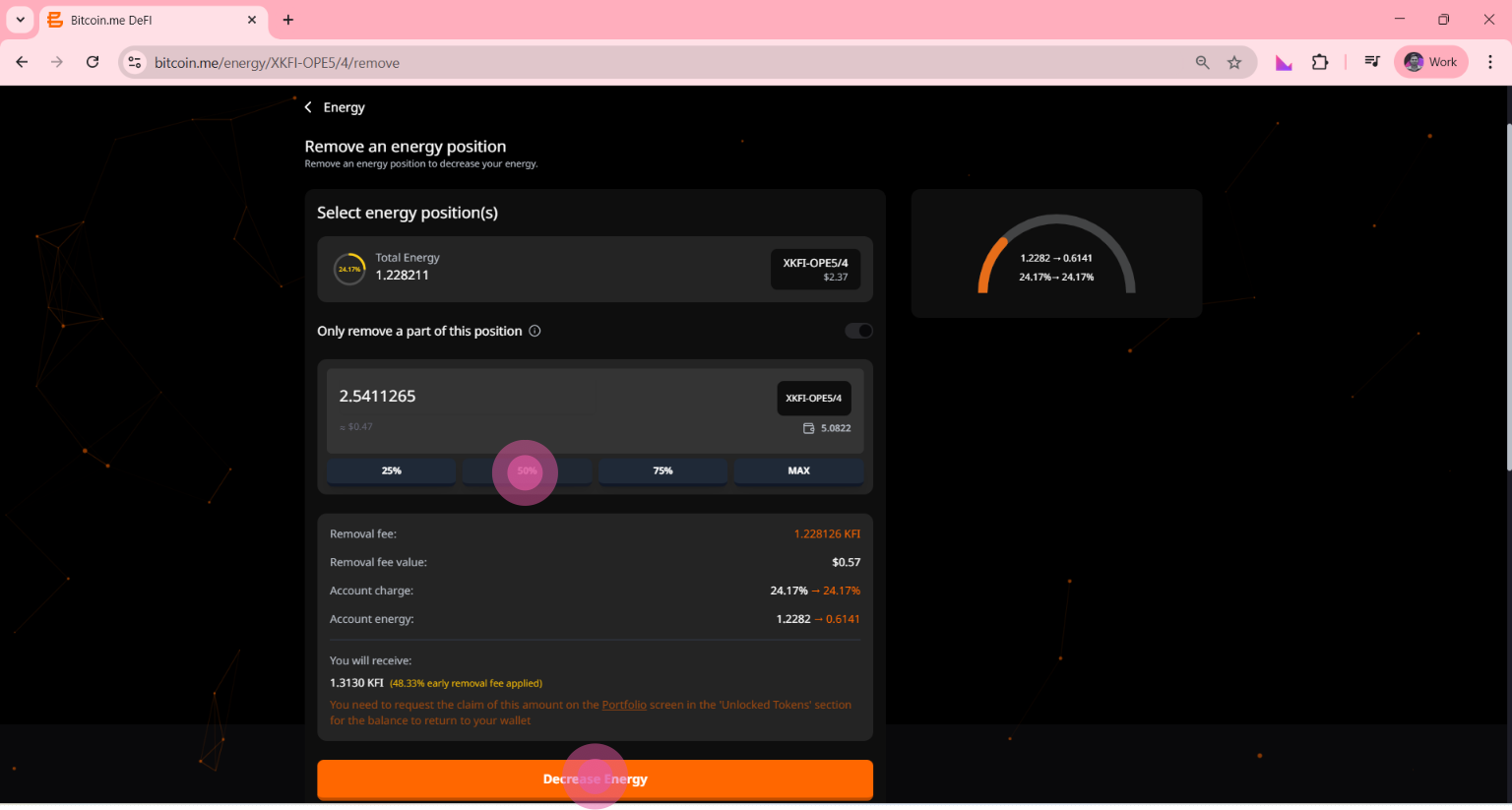
Step 4 — Remove the position
Click Remove.
Step 5 — Confirm the transaction
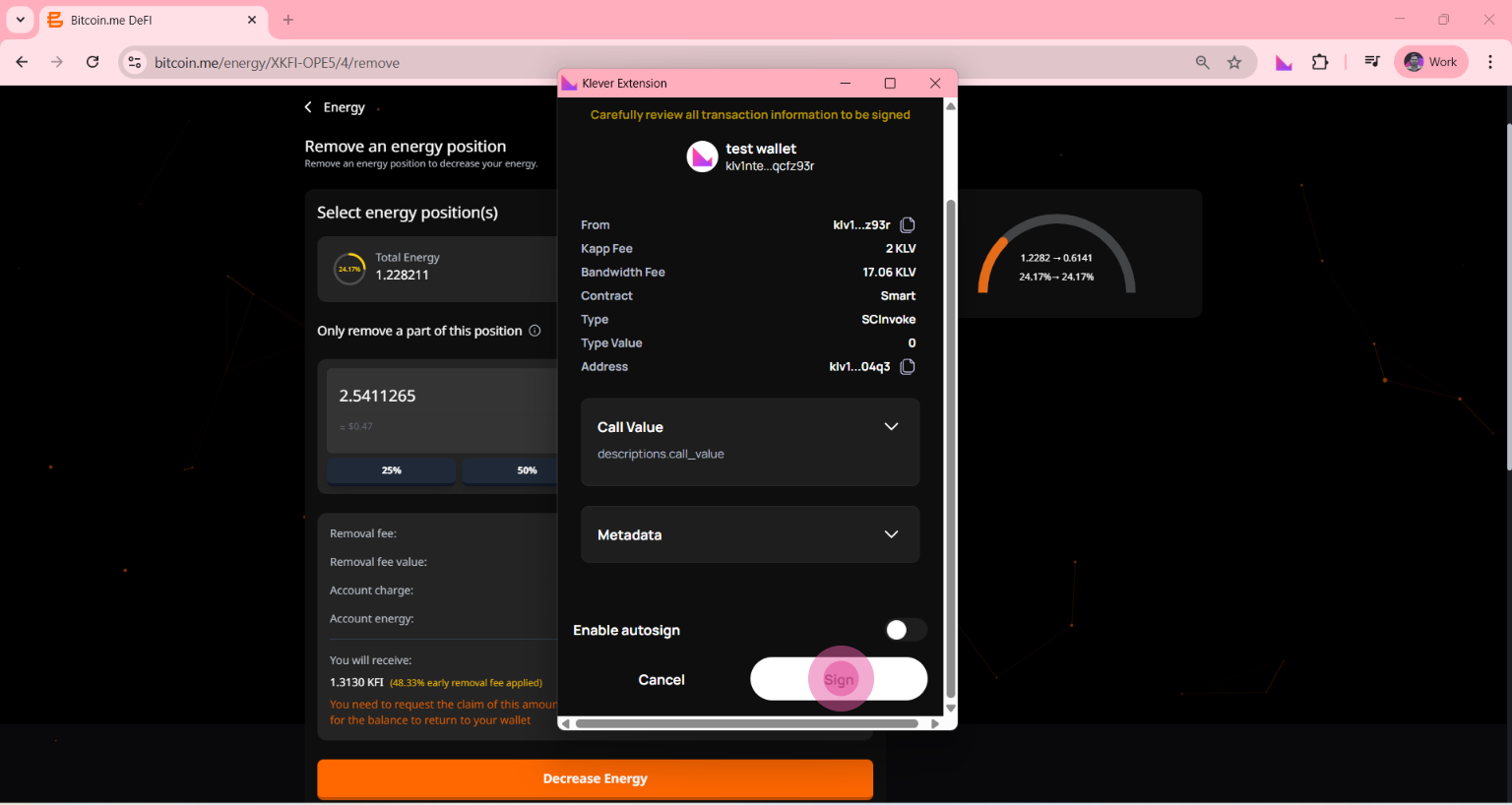
Your Klever Extension will open again.
Click Sign to confirm the request.
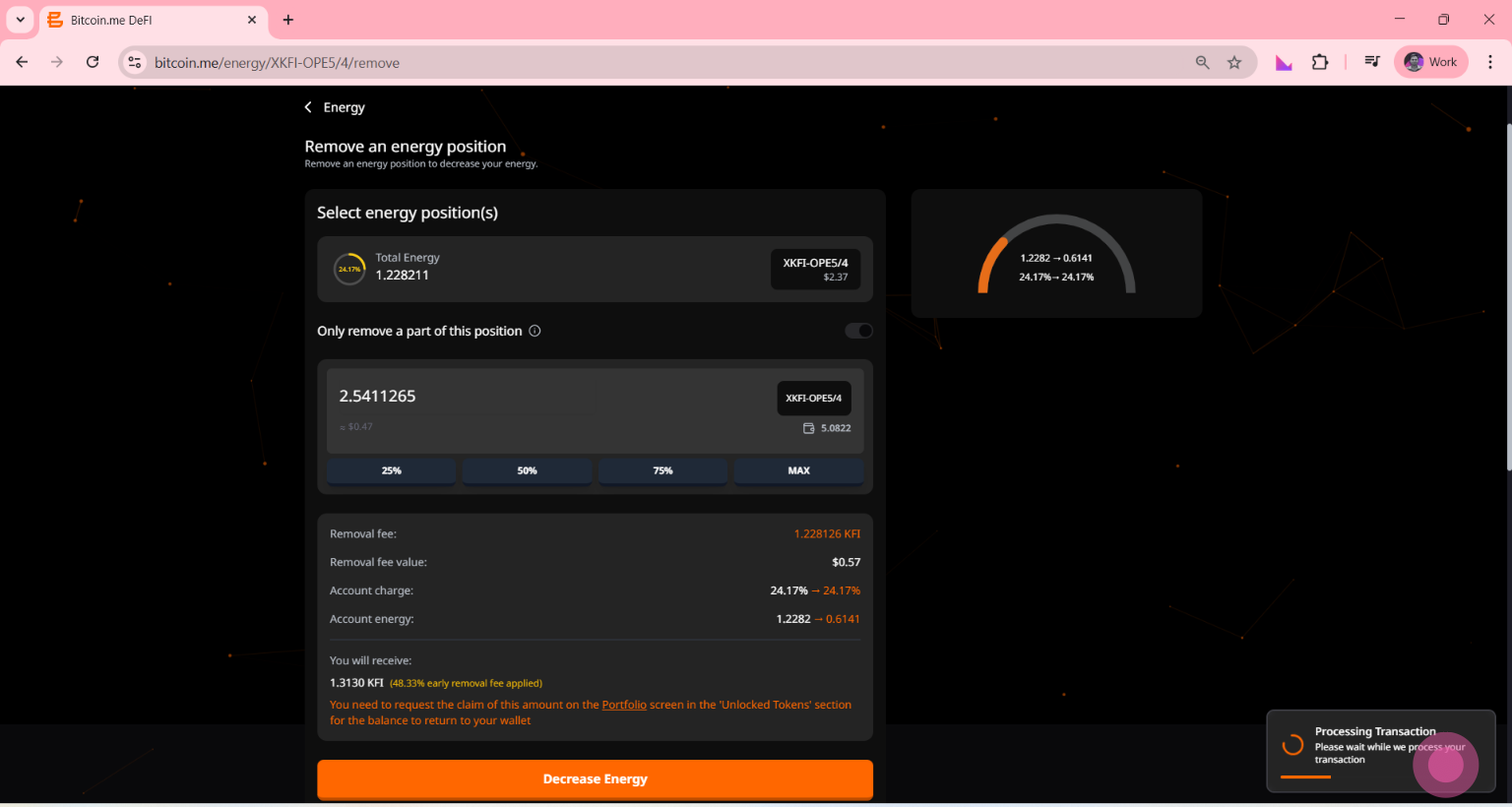
After the 10–11 day waiting period, your tokens will be fully unlocked and available in your Portfolio.
💡 Tip
Locking tokens for longer periods can increase your energy and rewards, but remember that your tokens will stay locked until the selected period ends or the unlock process finishes.